

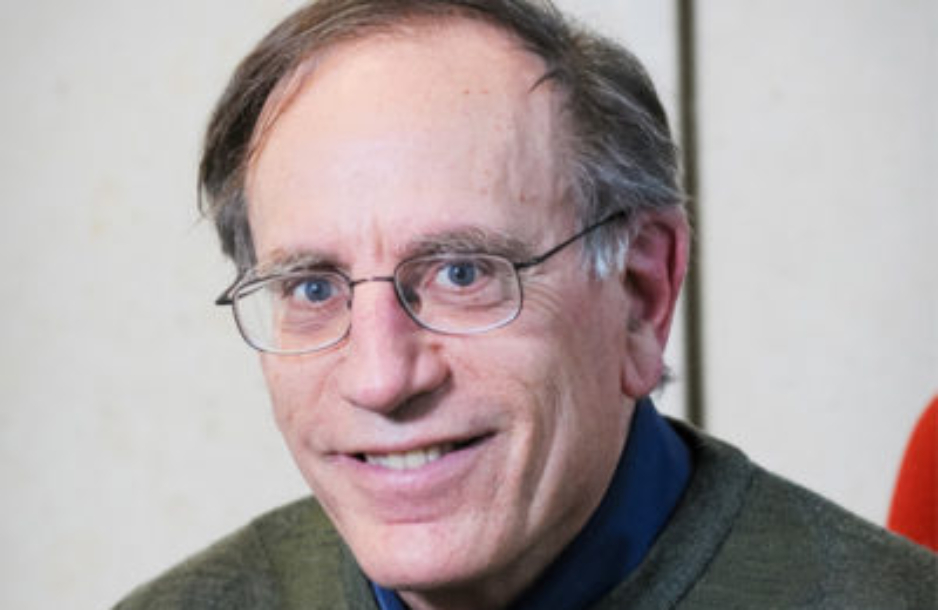
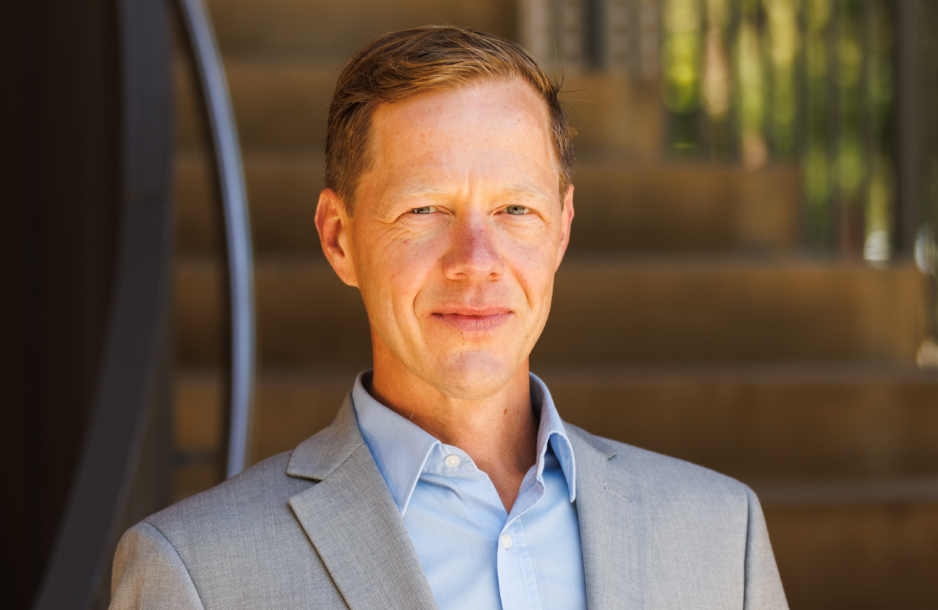
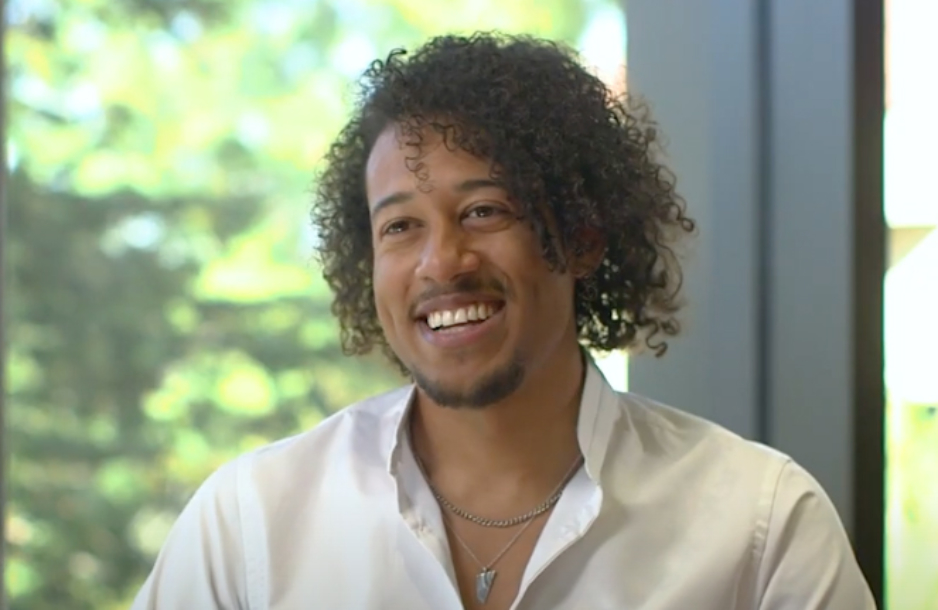
There’s just so much energy and enthusiasm and intelligence at this place. People don’t just talk about problems. They find a way to fix it. They start a pro bono that’s helping veterans find jobs or helping victims of human trafficking.
James Barton, JD ’15
I am a/an...
SLS Degree Programs

Join a diverse and inclusive community shaped by a commitment to the future.

Join a diverse and inclusive community shaped by a commitment to the future.
Learn more
A hallmark of Stanford University and a distinct strength of Stanford Law, where students can explore the many ways law intersects with other fields.
Learn more
One-year master's degree programs and a doctoral degree (JSD) for international graduate students who have earned a law degree outside the United States.
Learn more
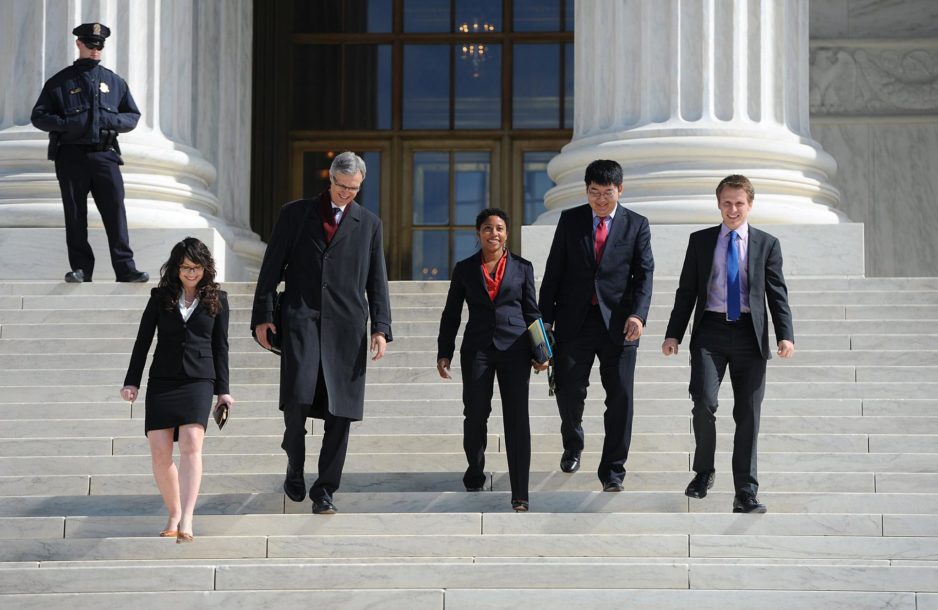
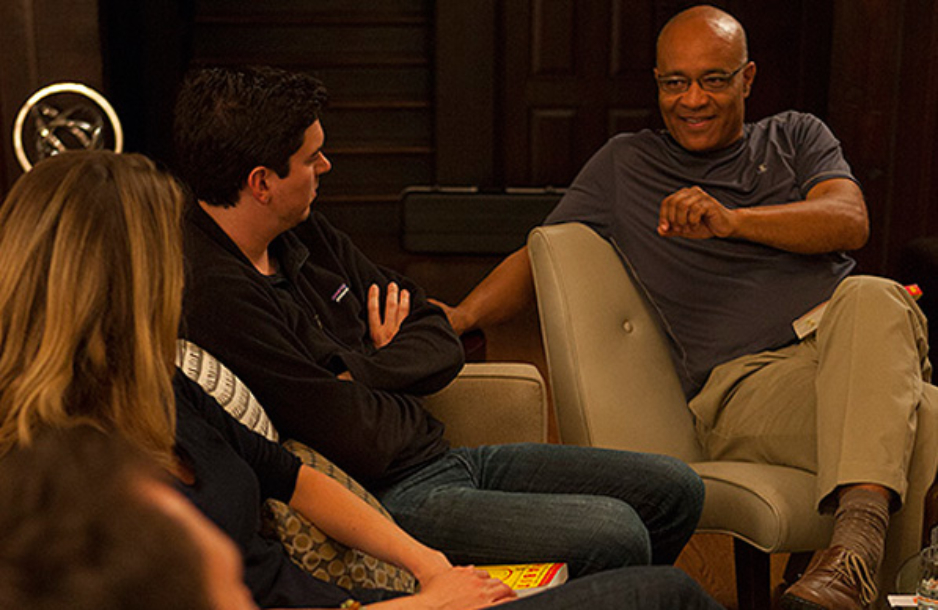
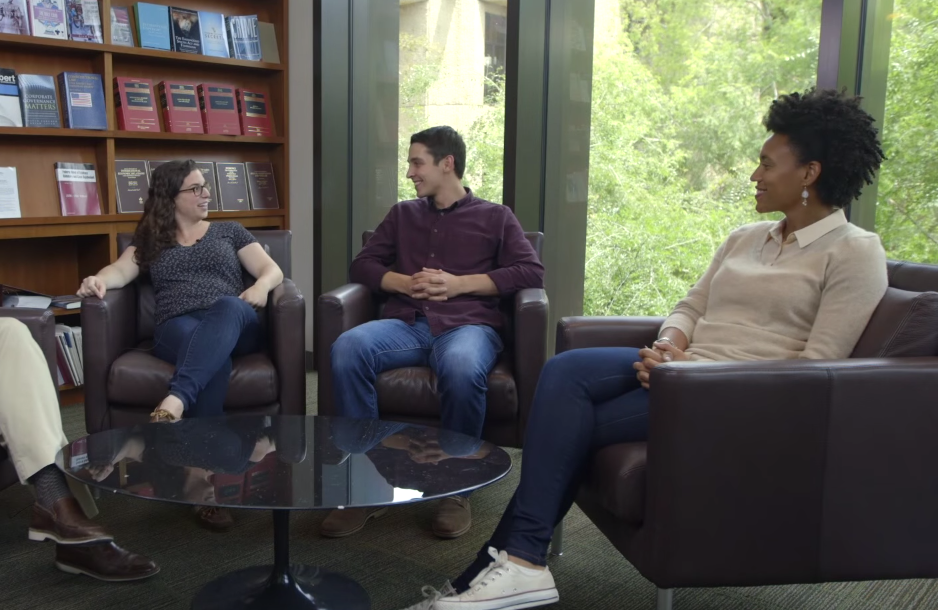

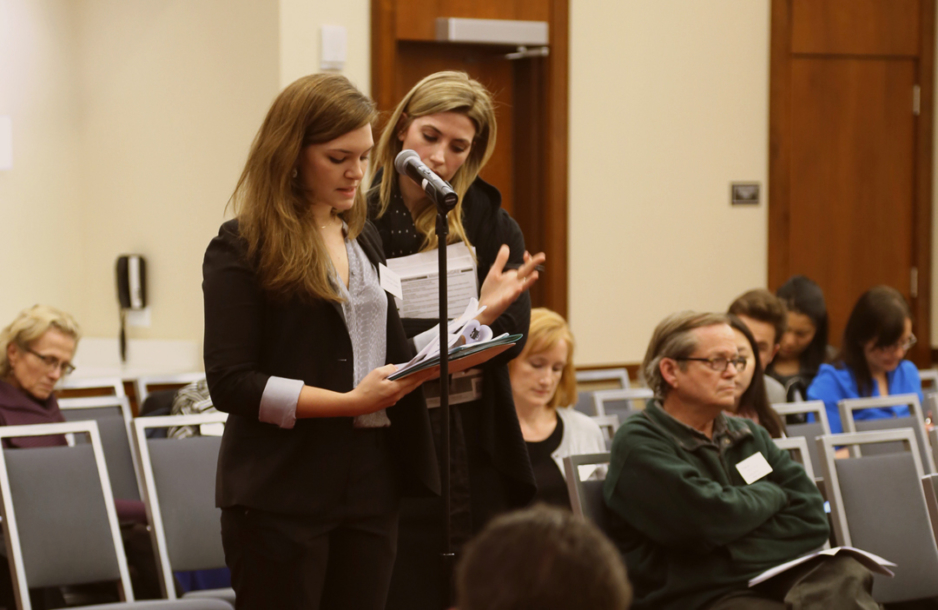

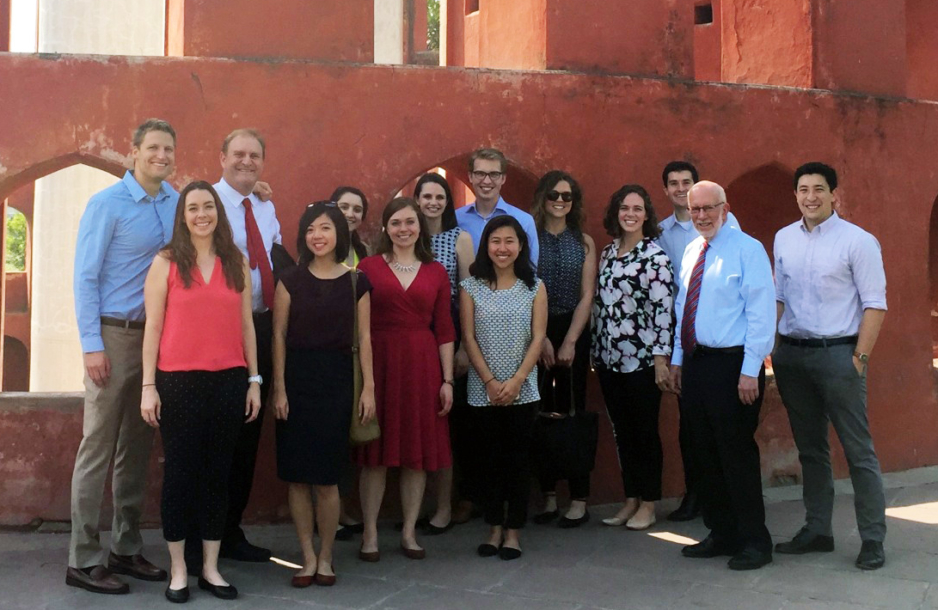
SLS Students Share Their Stories

Connect with Us



Learn about the California Racial Justice Act of 2020 in a new blog post by the Stanford Center for Racial Justice.
Read more: https://stanford.io/49P4H6I

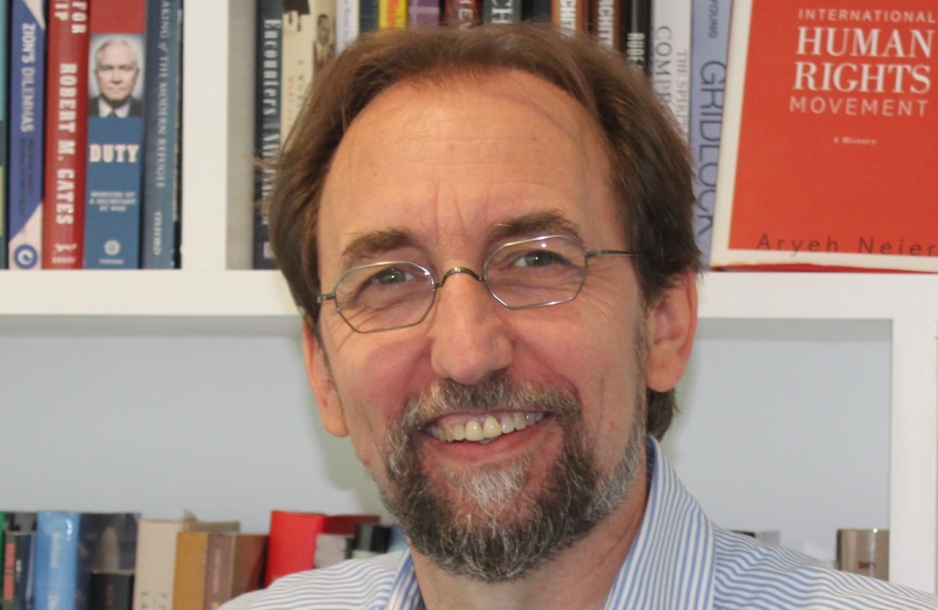
Zeid Ra'ad Al Hussein, head of the International Peace Institute and former UN High Commissioner for Human Rights, will visit SLS for several events and to accept the Ralston Prize in International Law. https://stanford.io/3JAwXzb

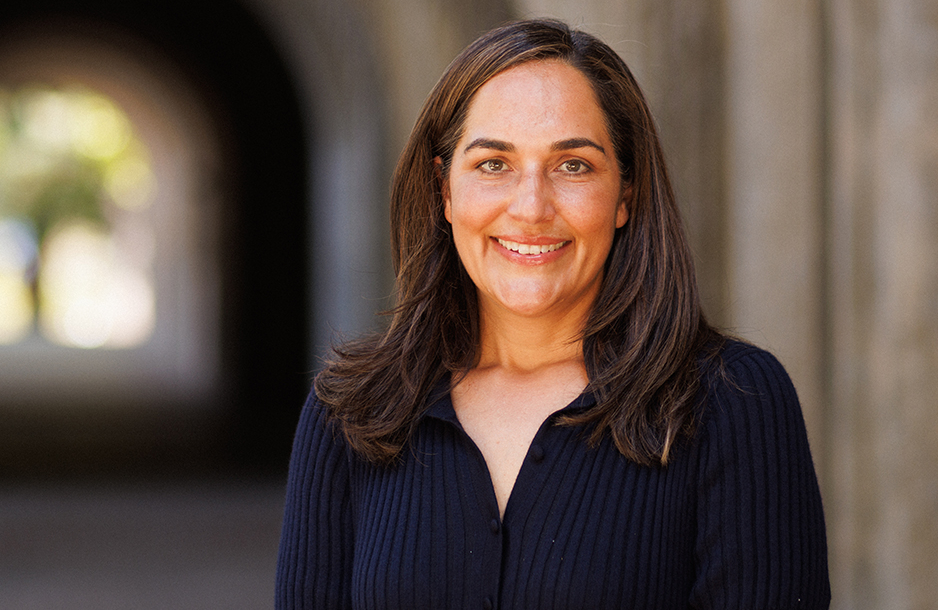
Jennifer Chacón (BA ’94), the Bruce Tyson Mitchell Professor of Law at Stanford Law School, wrote a book (with Susan Bibler Coutin, and Stephen Lee) titled, Legal Phantoms: Executive Action and the Haunting Failures of Immigration Law (Stanford University Press), which examines questions of ...national identity and immigration.
This book interviews would-be applicants of the deferred action program (DAPA) for parents of citizens and lawful permanent residents that President Obama attempted but ultimately fell short of implementing, along with immigration rights advocates and government officials. These interviews illustrate how such failed immigration reform programs affect individuals, families, communities, and the country. This is a story of resiliency and how individuals have forged onward despite a difficult and uncertain legal landscape.
https://stanford.io/44gaHEz

“Our hope is to work closely with Senegalese civil society groups to analyze systemic challenges to democracy there and to propose avenues for reform,” said SLS Professor and the Executive Director of the Rule of Impact Lab, Amrit Singh, in a profile by The Stanford Daily.
On March 24,... Bassirou Diomaye Faye, a Senegalese politician and opposition leader, won the election for the presidency, marking him as the youngest president in Senegalese history. Prior to his election, Stanford Law School's Rule of Impact Lab fought for the free election by filing a lawsuit in January against the internet shutdowns of summer 2023.
https://stanford.io/3W6t8tb