


“Innovation” and “interdisciplinary” approaches are not brochure buzzwords for SLS, but galvanizing principles evident in the law school’s steadfast commitment to forging new frontiers.
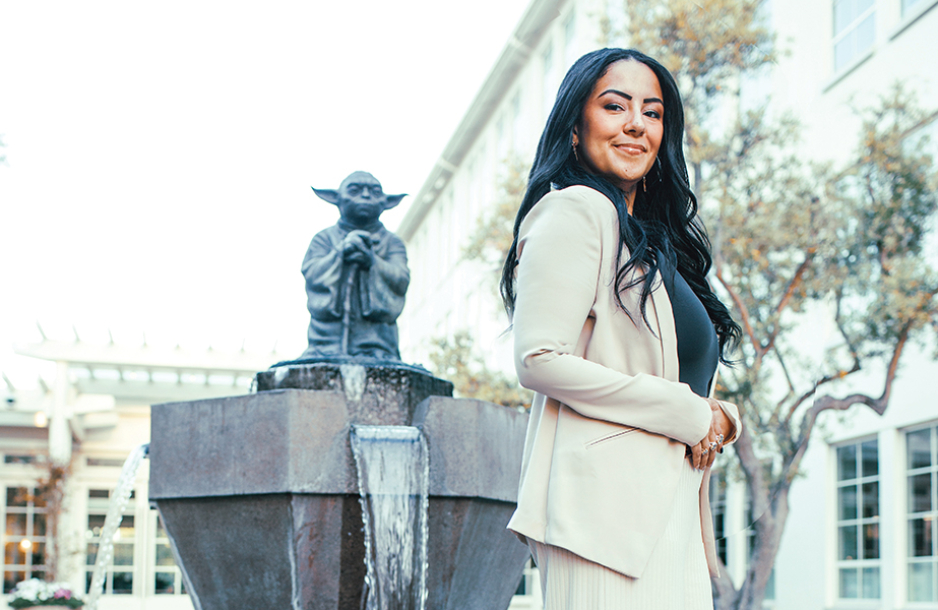
Rayne Sullivan, JD ’23
I am a/an...
SLS Degree Programs
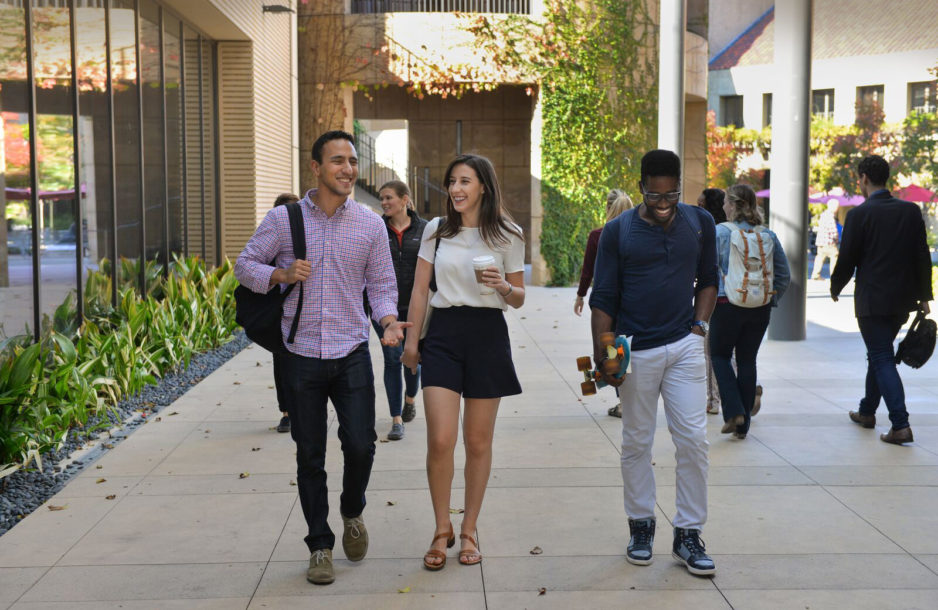
Join a diverse and inclusive community shaped by a commitment to the future.

Join a diverse and inclusive community shaped by a commitment to the future.
Learn more
A hallmark of Stanford University and a distinct strength of Stanford Law, where students can explore the many ways law intersects with other fields.
Learn more
One-year master's degree programs and a doctoral degree (JSD) for international graduate students who have earned a law degree outside the United States.
Learn more

In Focus




Connect with Us

Today, #SLSSocial and SLA hosted the Spring BBQ on Wilbur Field. Students, faculty, staff, and families were invited to attend the event where incoming Dean George Triantis addressed the attendees. The event included lawn games, a buffet, swag winners, and music.


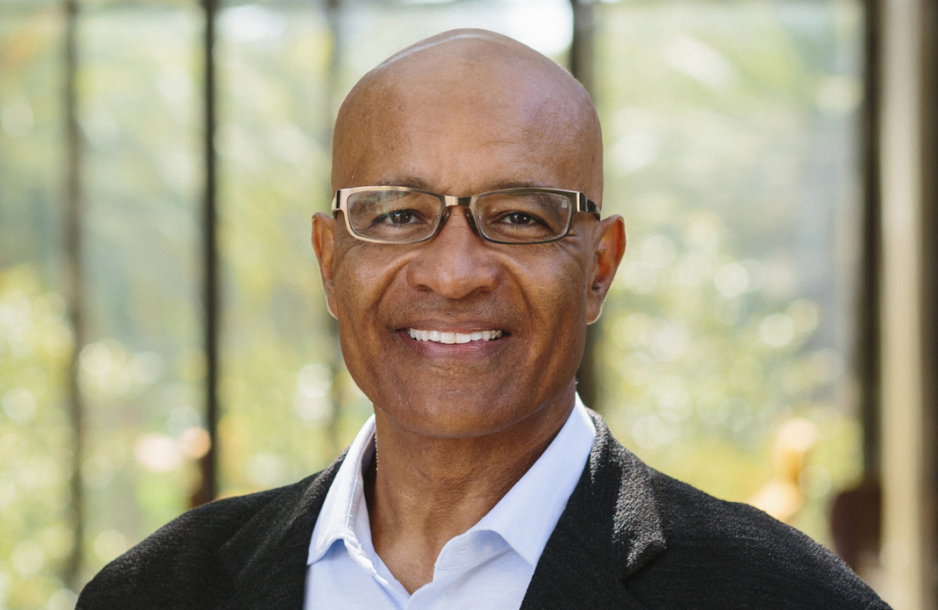
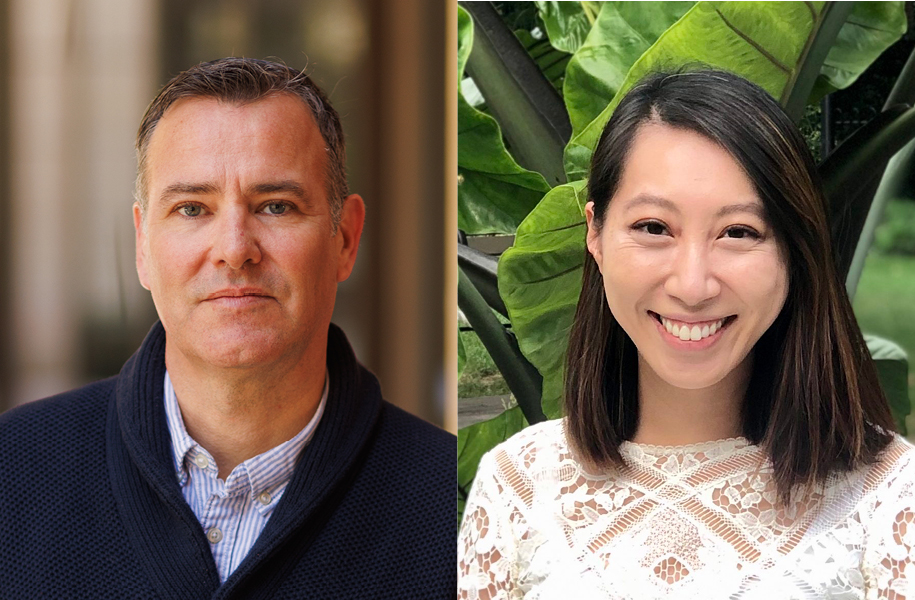
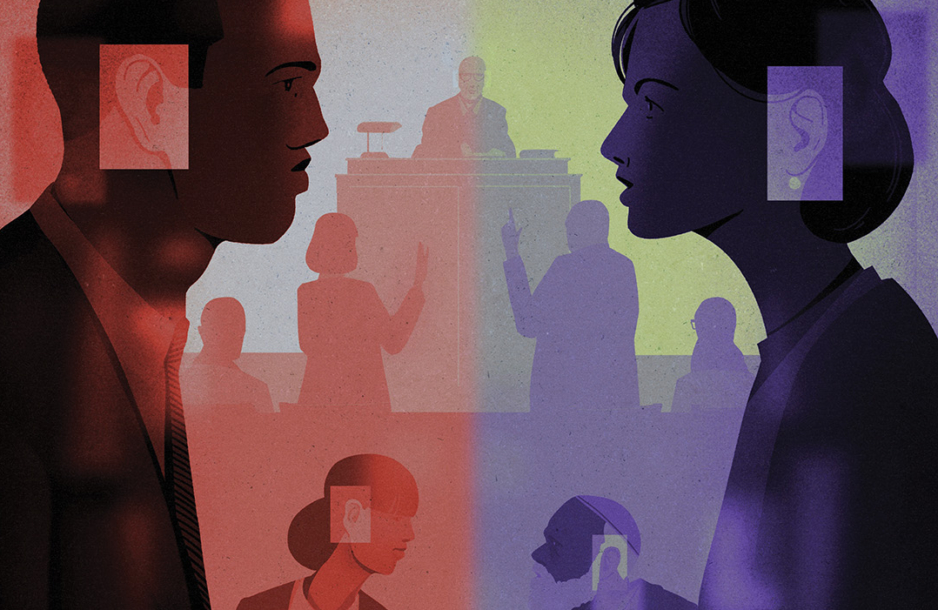
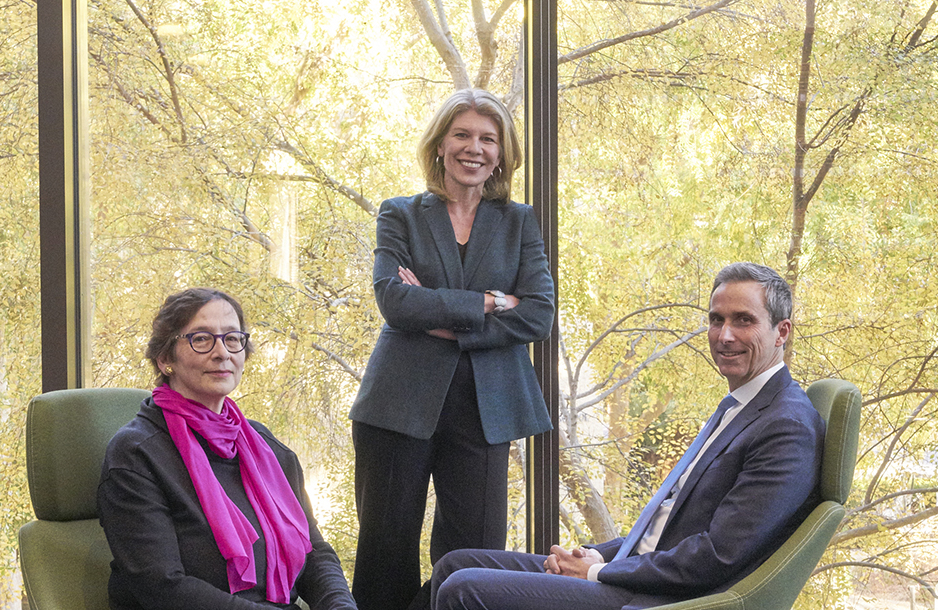
Daniel Ho, the William Benjamin Scott and Luna M. Scott Professor of Law and the founding director of Stanford’s Regulation, Evaluation, and Governance Lab (RegLab), along with Christie Lawrence, JD ’24 (MPP, Harvard Kennedy School of Government), joined SLS Professors Pamela Karlan and Richard... Ford on the most recent Stanford Legal podcast episode titled, "AI in Government and Governing AI: A Discussion with Stanford’s RegLab."
"We started the Reg Lab around five years ago. Really as we were working with government agencies and realizing that just as we saw the technology really taking off, government was increasingly behind in actually bringing in the expertise and having the digital infrastructure to really think about the implications for government itself," said Professor Ho in the episode. Listen in at the link below.
https://stanford.io/3QAFIgP

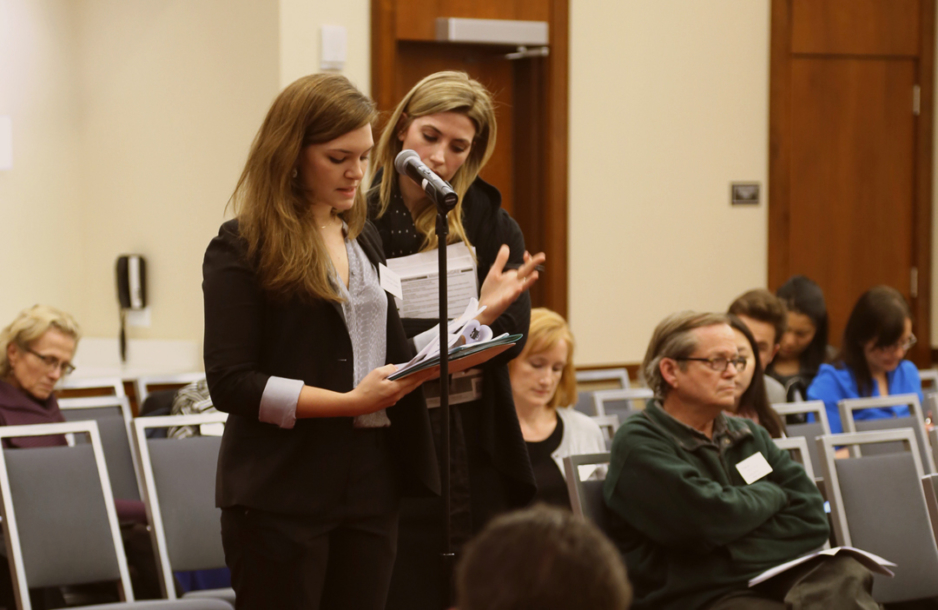
The 2024 Law Firm Expo Series wrapped up on April 23 with attorneys and recruiters (including 40 SLS alumni!) from more than 35 law firms giving students the chance to expand their knowledge of the legal market. The Law Firm Expos were a fantastic opportunity for Stanford Law School students to ...network with private sector attorneys, develop valuable contacts, and receive first-hand advice on navigating the legal profession.
"It was wonderful to be back at SLS and see Paul Brest Hall packed with students eager to learn about the wide variety of private practice opportunities. I loved getting to share my work experience with students and, as always the case at SLS, the students ask great, probing questions and are impressive, engaged and enthusiastic," said Haley Schwab, J.D. '22, who works as an associate in the Capital Markets practice at A&O Sherman. We are grateful for all of the firm representatives who came to SLS to give our students invaluable insights and advice.

The 2024 Law Firm Expo Series wrapped up on April 23 with attorneys and recruiters (including 40 SLS alumni!) from more than 35 law firms giving students the chance to expand their knowledge of the legal market. The Law Firm Expos were a fantastic opportunity for Stanford Law School students to ...network with private sector attorneys, develop valuable contacts, and receive first-hand advice on navigating the legal profession.
“It was wonderful to be back at SLS and see Paul Brest Hall packed with students eager to learn about the wide variety of private practice opportunities. I loved getting to share my work experience with students and, as always the case at SLS, the students ask great, probing questions and are impressive, engaged and enthusiastic,” said Haley Schwab, J.D. ‘22, who works as an associate in the Capital Markets practice at A&O Sherman. We are grateful for all of the firm representatives who came to SLS to give our students invaluable insights and advice.