



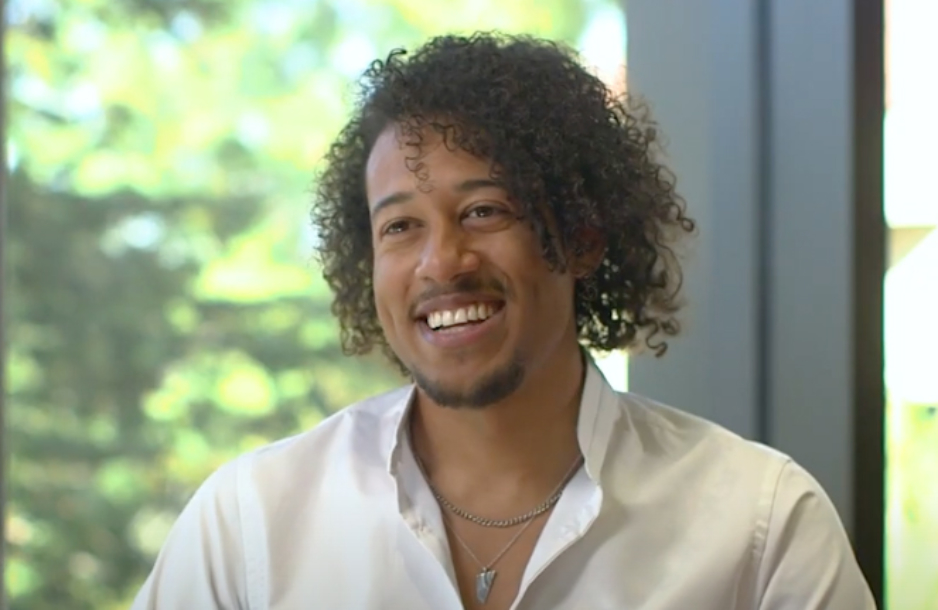
There’s just so much energy and enthusiasm and intelligence at this place. People don’t just talk about problems. They find a way to fix it. They start a pro bono that’s helping veterans find jobs or helping victims of human trafficking.
James Barton, JD ’15
I am a/an...
SLS Degree Programs

Join a diverse and inclusive community shaped by a commitment to the future.

Join a diverse and inclusive community shaped by a commitment to the future.
Learn more
A hallmark of Stanford University and a distinct strength of Stanford Law, where students can explore the many ways law intersects with other fields.
Learn more
One-year master's degree programs and a doctoral degree (JSD) for international graduate students who have earned a law degree outside the United States.
Learn more
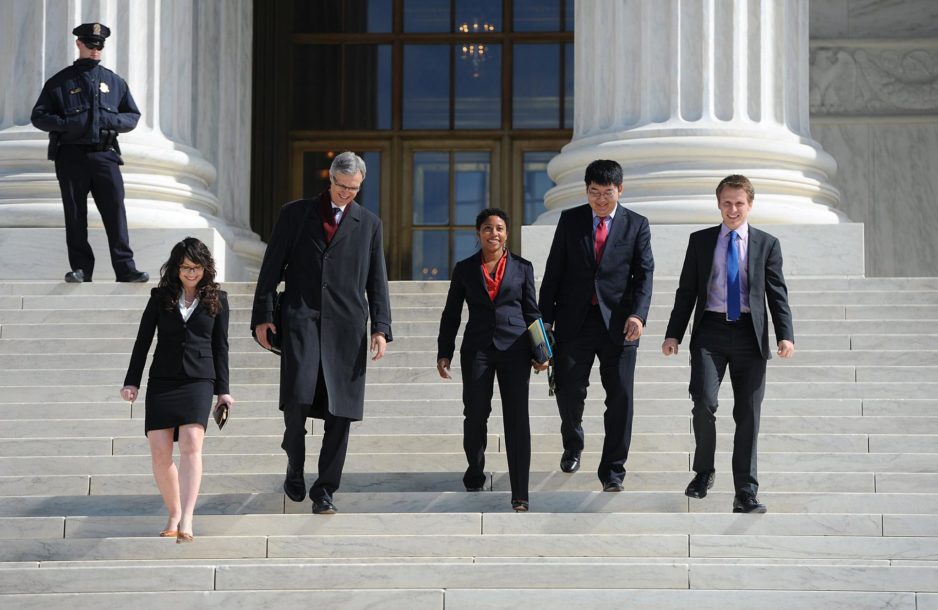
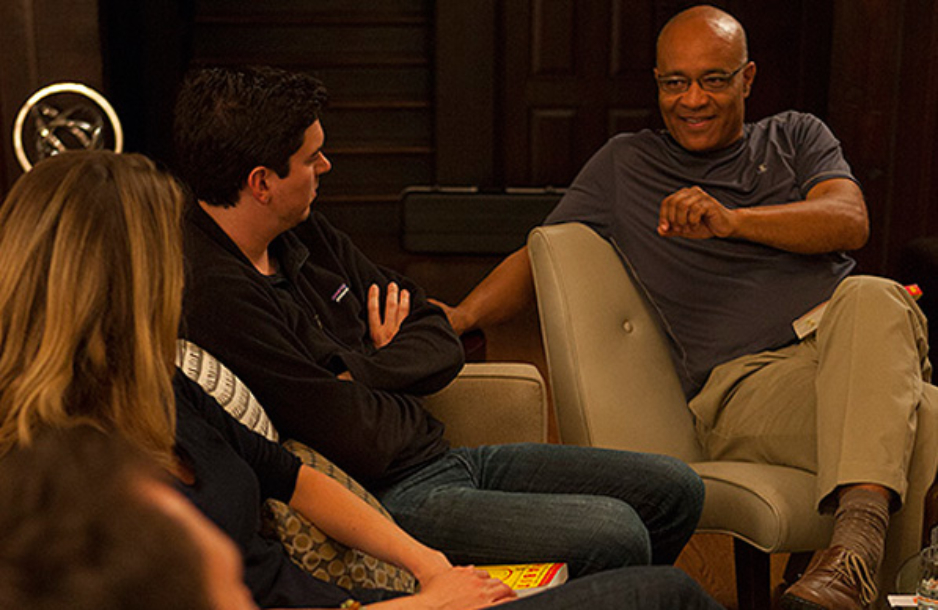
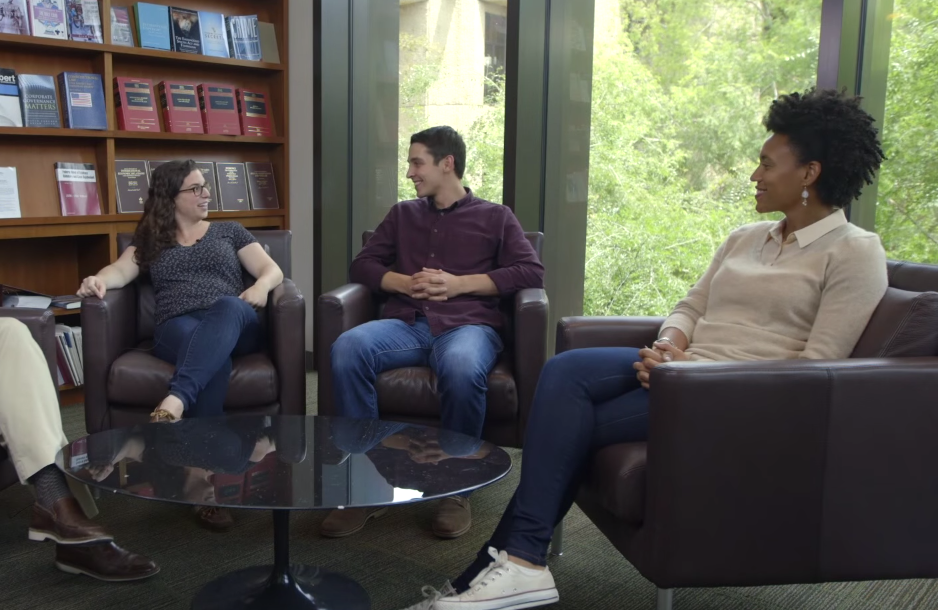
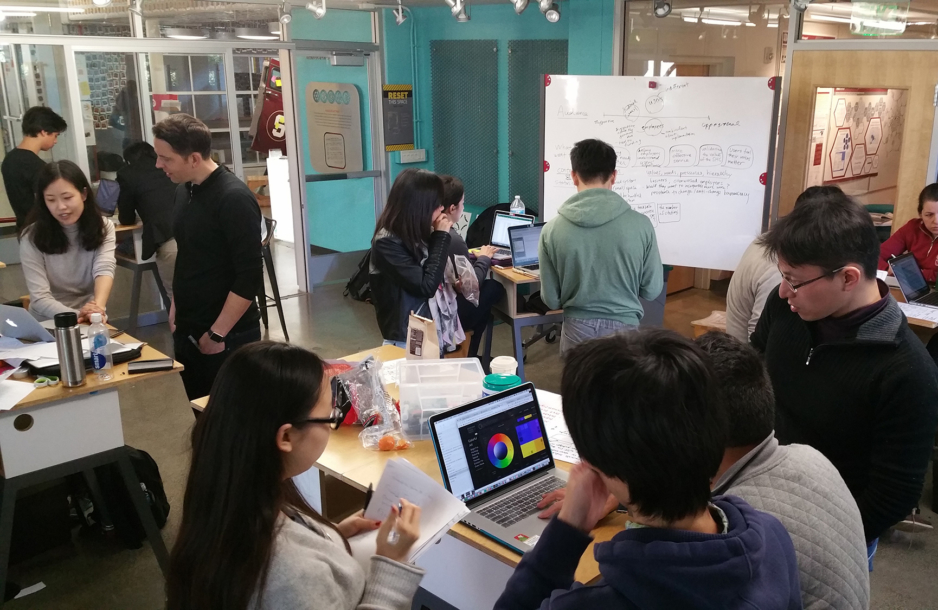
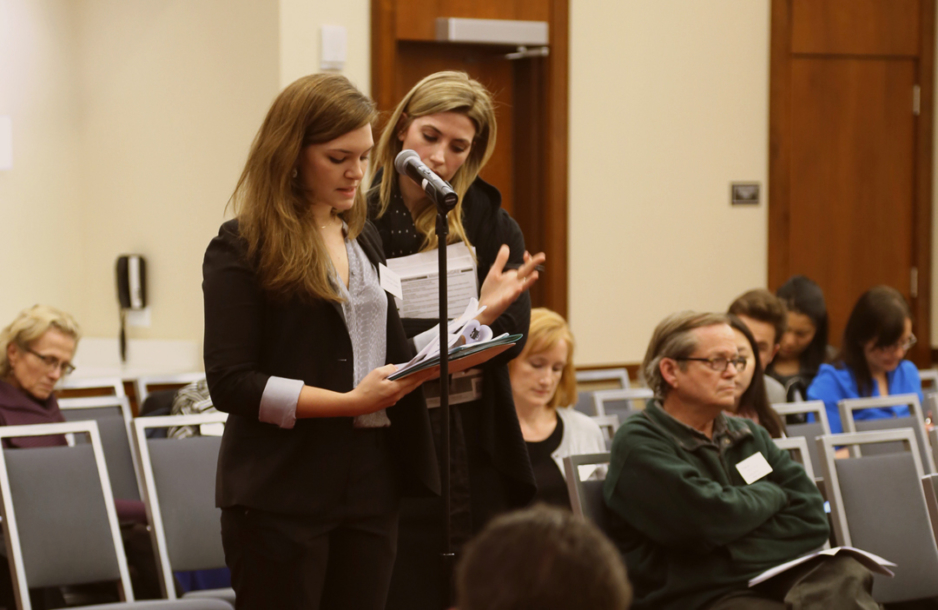

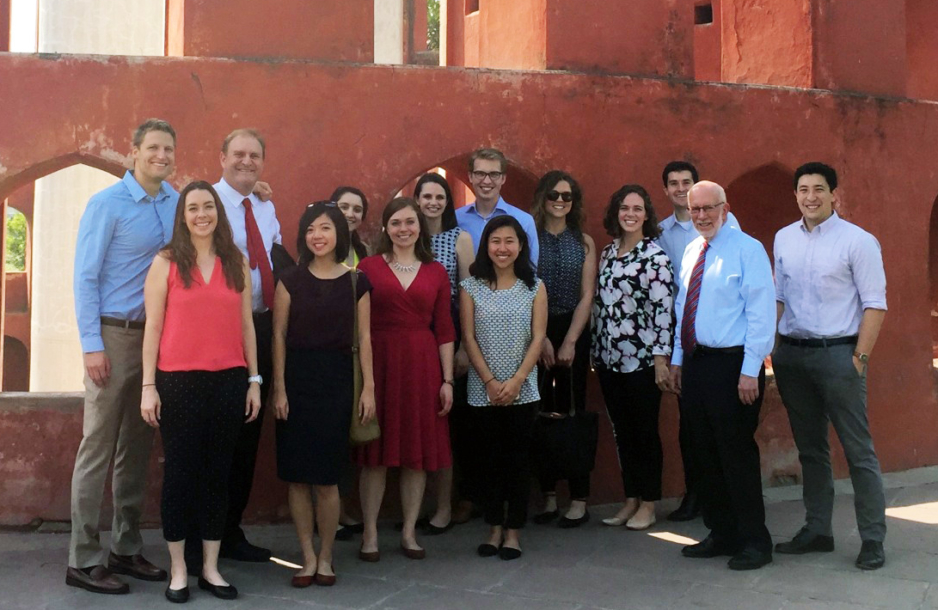
SLS Students Share Their Stories


Connect with Us

Professor Easha Anand, co-director of the Stanford Law School Supreme Court Litigation Clinic, along with Gareth Fowler, JD ’24, joined Professors Pam Karlan and Richard Thompson Ford during a live taping of the Stanford Legal podcast as they discuss three cases that Anand argued before the Court... this term, the people behind the case titles, and what it takes to represent them at the highest court in the land. Click the link in bio to listen 🎧


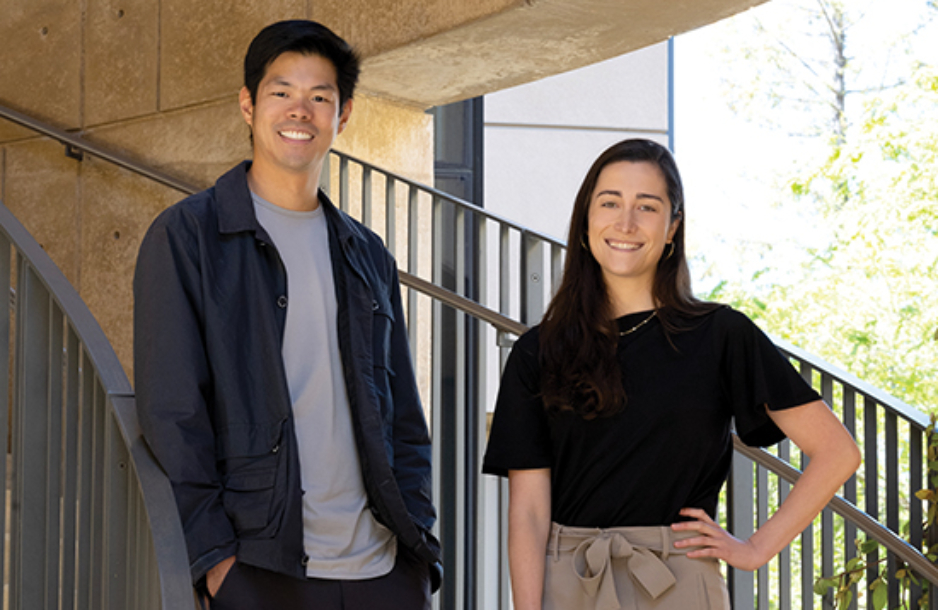
Congratulations to SLS student, Sarah Bobok, JD '26, on receiving the Paul & Daisy Soros Fellowship. The award provides generous funding for immigrants and children of immigrants pursuing graduate degrees.
Read more: https://stanford.io/3UmKjFq

In a new online feature, Stanford Lawyer Magazine looks at an alternative spring break that gives participating SLS students a week of pro bono experience in a city plagued by foreclosures. https://stanford.io/3xFHzKv

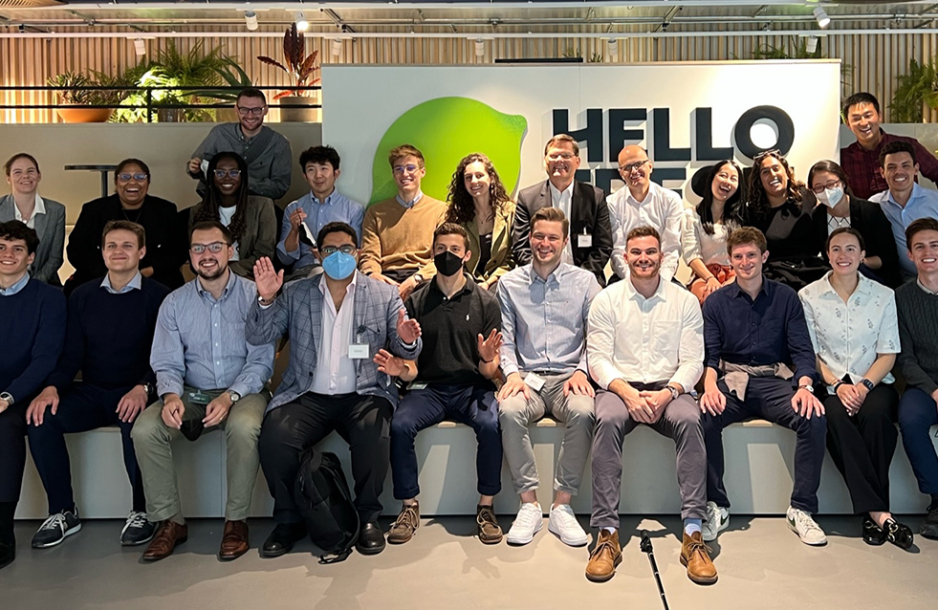
Startup Law: Sustainability, conceived and co-taught by lecturers Molly Melius, JD ’10, and Sam McClure, JD ’17, takes a win-win-win approach to teaching SLS students about what it means to be a lawyer for a sustainability-focused startup.
Read more: https://stanford.io/3W6lfnH