

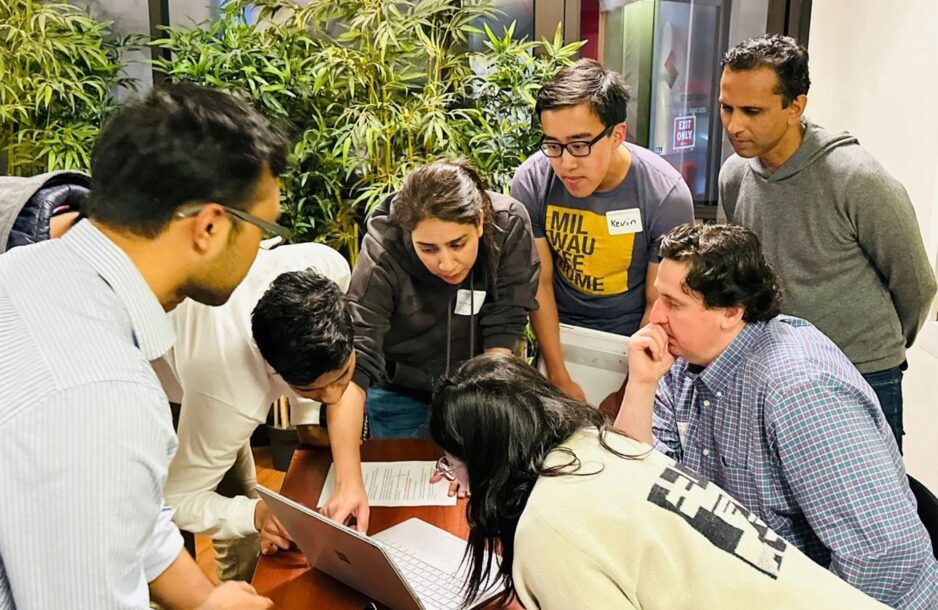
“Innovation” and “interdisciplinary” approaches are not brochure buzzwords for SLS, but galvanizing principles evident in the law school’s steadfast commitment to forging new frontiers.
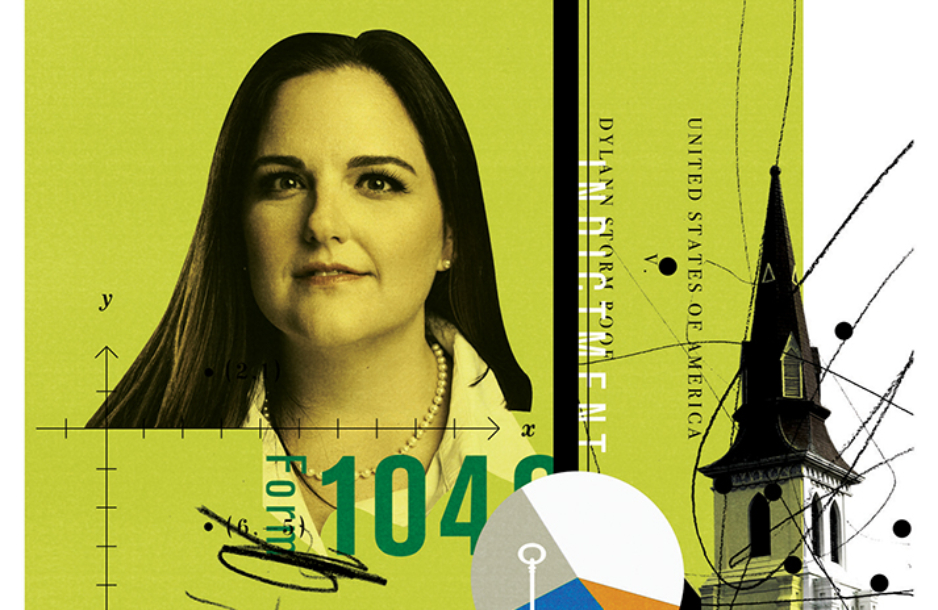
Rayne Sullivan, JD ’23
I am a/an...
SLS Degree Programs
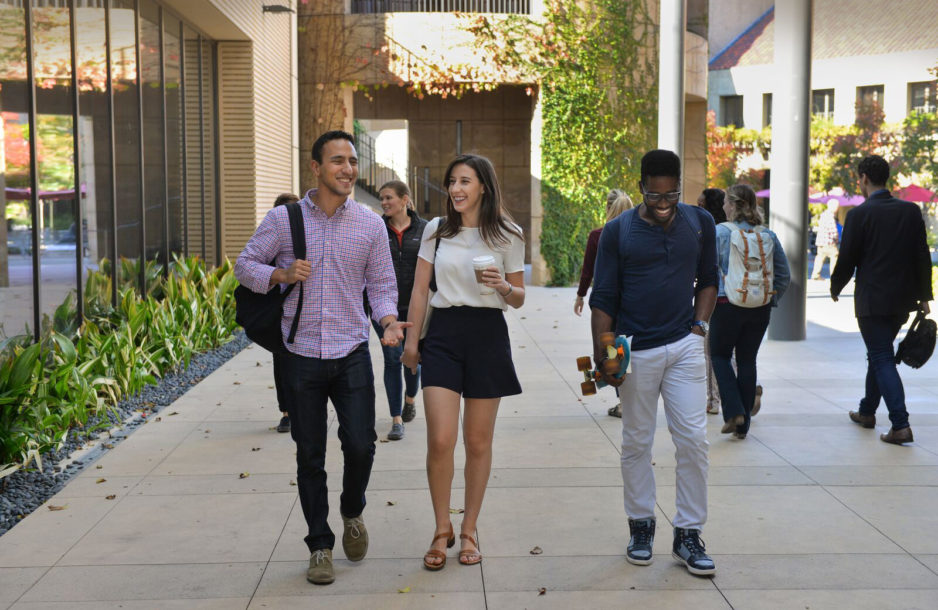
Join a diverse and inclusive community shaped by a commitment to the future.

Join a diverse and inclusive community shaped by a commitment to the future.
Learn more
A hallmark of Stanford University and a distinct strength of Stanford Law, where students can explore the many ways law intersects with other fields.
Learn more
One-year master's degree programs and a doctoral degree (JSD) for international graduate students who have earned a law degree outside the United States.
Learn more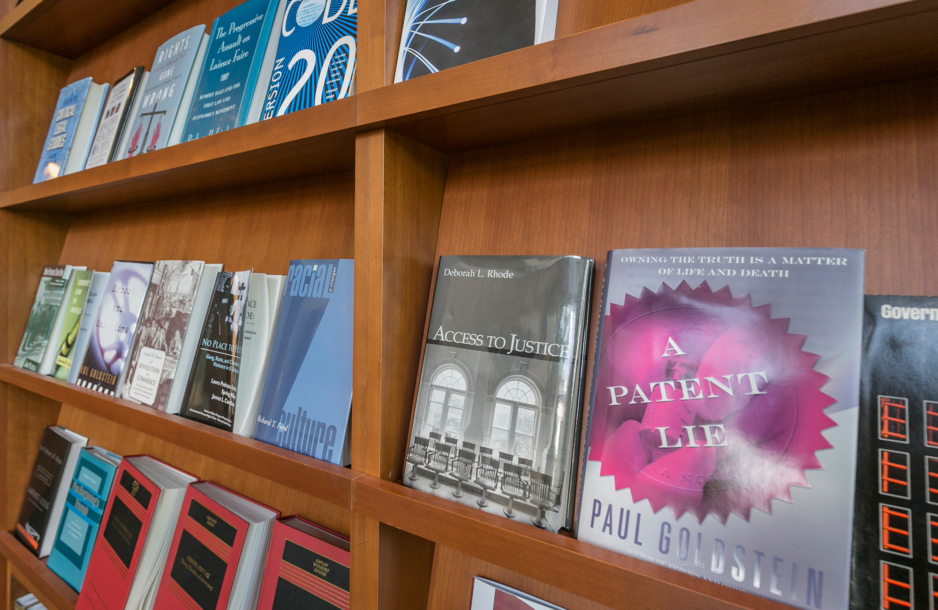

In Focus






Connect with Us



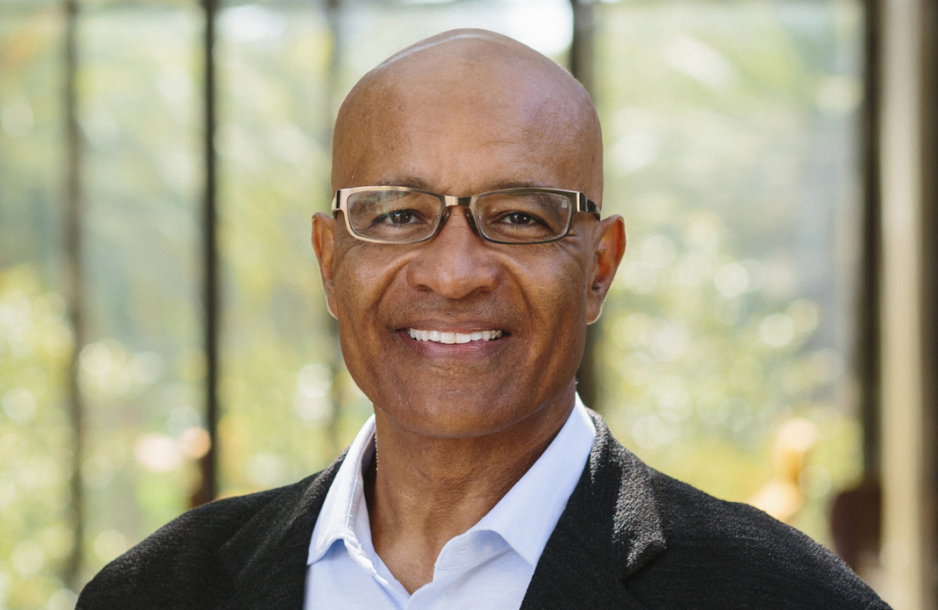
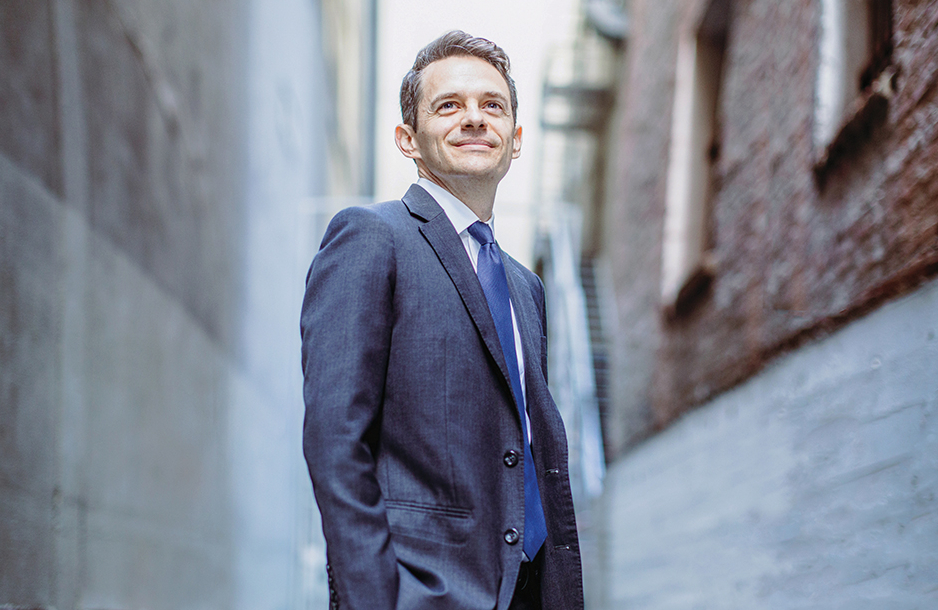
David Sklansky, the Stanley Morrison Professor of Law and
Faculty Co-Director of the Stanford Criminal Justice Center joined SLS Professors Pamela Karlan and Richard Ford on Stanford Legal's most recent podcast episode to discuss the legal challenges facing former U.S. president Donald ...Trump.
"Obviously, the judge doesn’t want to put him in jail either, so there’s a bit of a game of chicken here, and Trump is a chaos agent, so then normally, you think that in any game of chicken, he’ll win because he doesn’t care if the world blows up, but here, I don’t think he’s going to win. I think that as much as the judge doesn’t want to put Trump in jail, Trump even more doesn’t want to go to jail," said Professor Sklansky in the episode. Listen in at the link below.
https://stanford.io/4aizj0z

Today, #SLSSocial and SLA hosted the Spring BBQ on Wilbur Field. Students, faculty, staff, and families were invited to attend the event where incoming Dean George Triantis addressed the attendees. The event included lawn games, a buffet, swag winners, and music.

Congratulations to the 2024 cohort of Knight-Hennessy Scholars, which is the largest cohort ever! The 90 new scholars represent 30 countries and 45 graduate degree programs across Stanford University, including 15 scholars at Stanford Law School.
Knight Hennessy Scholars is a graduate ...fellowship program where students receive up to three years of funding to pursue a graduate degree at Stanford, "while engaging in experiences that prepare them to be visionary, courageous, and collaborative leaders who address complex challenges facing the world."
https://stanford.io/3JXSXo6

Join us on Monday, May 20, for the 2nd Annual Stanford Responsible Quantum Technology Conference. This year will celebrate the launch of the Stanford Center for Responsible Quantum Technology.
RSVP Today: https://stanford.io/4dvDfxT